Admin Console

Data Connectors
Connect external data sources to seamlessly integrate your data into AI workflows. We currently supported the following providers:
- Amazon S3
- Azure Blob Storage
Create Data Connector
To add a new connector, click the Add Data Connector button and select the provider you wish to connect to.

For Amazon S3, the following fields are required:
- Name: A unique identifier for your connector.
- Prefix: The path within your S3 bucket where data is stored (e.g., folder/subfolder).
- Access Key ID: Your AWS access key used for authentication.
- Region: The AWS region where your S3 bucket is hosted (e.g., us-west-2).
- Secret Access Key: The secret key paired with your Access Key ID.
For Azure Blob Storage, the required fields include:
- Name: A unique identifier for your connector.
- Account URL: The full URL of your Azure Storage account (e.g., https://youraccount.blob.core.windows.net).
- Prefix: The path within your Azure container where data is stored.
- Authentication Method: Choose between Account Access Key or Shared Access Signature (SAS), then enter the corresponding credential in the field provided.
Validate Data Connector
You can verify the connection by clicking the Validate icon, as shown in the image. This step ensures that the connector is correctly configured and that data is accessible from the specified path.

Edit Data Connector
You can edit the details of a data connector at any time by clicking the Edit button in the menu. This is useful for updating credentials or configuration settings to maintain seamless access to your external data sources.

LLM Integrations
Bring your own Large Language Model for agent completions, giving you more control over your AI workflows.Compatible API types:
- OpenAI Generic - To create a custom OpenAI Generic endpoint, a LLM endpoint URL, Model name and API Key are required. Works with:
- OpenAI Azure - To create a custom OpenAI Azure endpoint, API version, API Key and either a Resource Name and Deployment ID or a Base URL are required. Works with:
Create LLM Endpoint
To add a new custom model, click on Add LLM Endpoint button and choose the API type that best matches your setup. Then, click Continue and fill in the required details.

Validate LLM Endpoint
You can verify if a custom model endpoint is working correctly by clicking the Validate icon, as shown in the image. Validating your endpoint ensures that the connection is properly configured and that the model can respond as expected—helping you avoid issues during deployment or usage.
Edit LLM Endpoint
You can edit the details of a custom endpoint at any time by clicking the Edit button from the menu. This is useful for updating API keys to ensure your model continues to perform as expected.
Member Management
Member Management allows the admin to invite new users to the organization, assign roles, and manage access levels. Admins can also remove existing members when needed, ensuring the right people have the right permissions. To do this, go to the "Members" section in the Admin Console.
To invite new members to your organization, click the Invite Members button, then enter the user's email address and assign a role. The invited member will receive an email with a link to join the organization. You can track all pending invitations under the Pending tab on the Members page. Once the invitation is accepted, the user will appear as an Active member under the Joined tab.
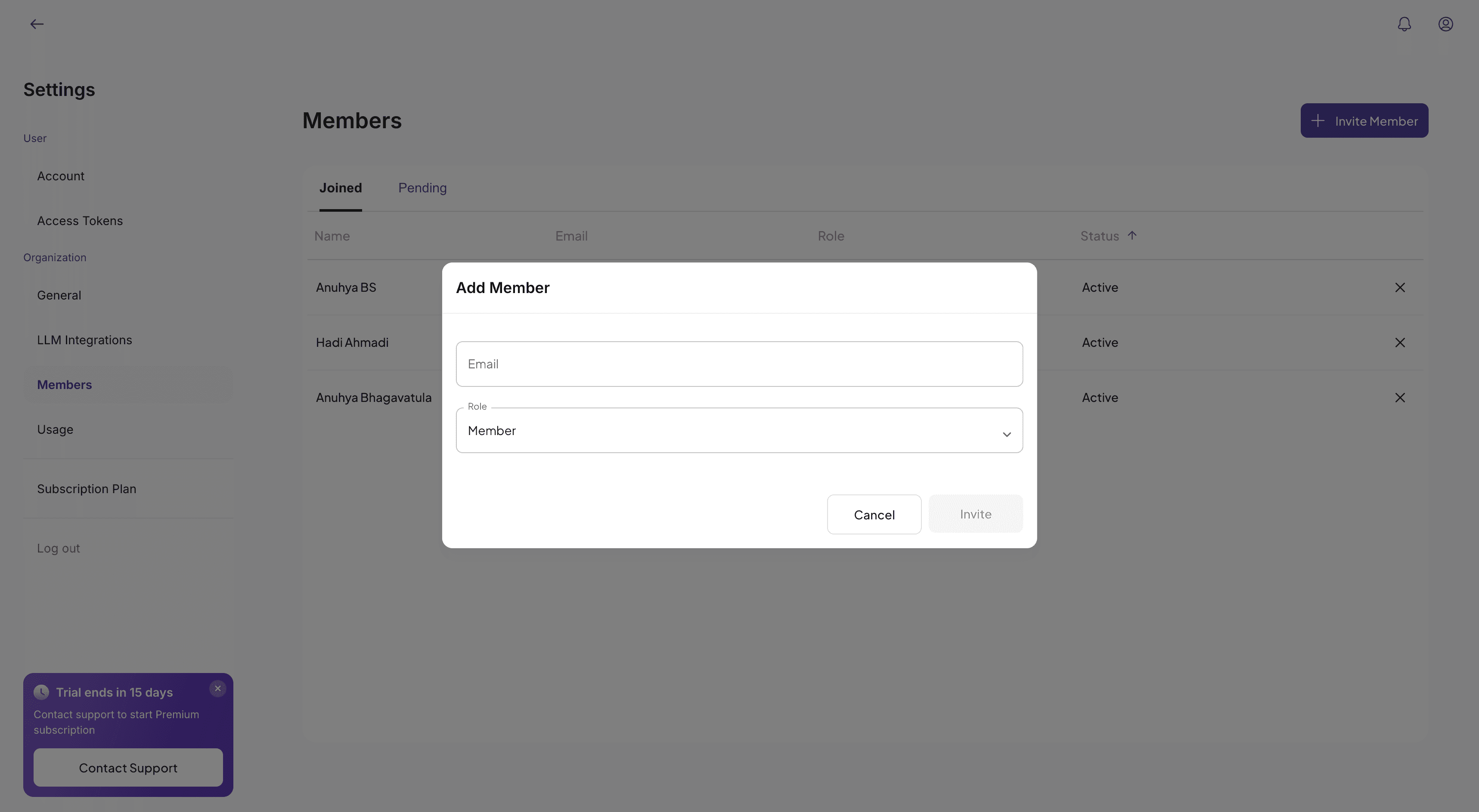
You can edit roles of existing users to be either an Admin or a member of the organization. Users with the Admin role have the ability to invite new members, manage roles, and add custom LLM endpoints. However, an admin cannot downgrade their own role, and the organization must always have at least one admin. Multiple admins are supported, ensuring flexibility in managing team responsibilities. Members, on the other hand, have limited access and cannot perform administrative actions. Admins can also remove them from the organization if needed.
Usage Dashboard
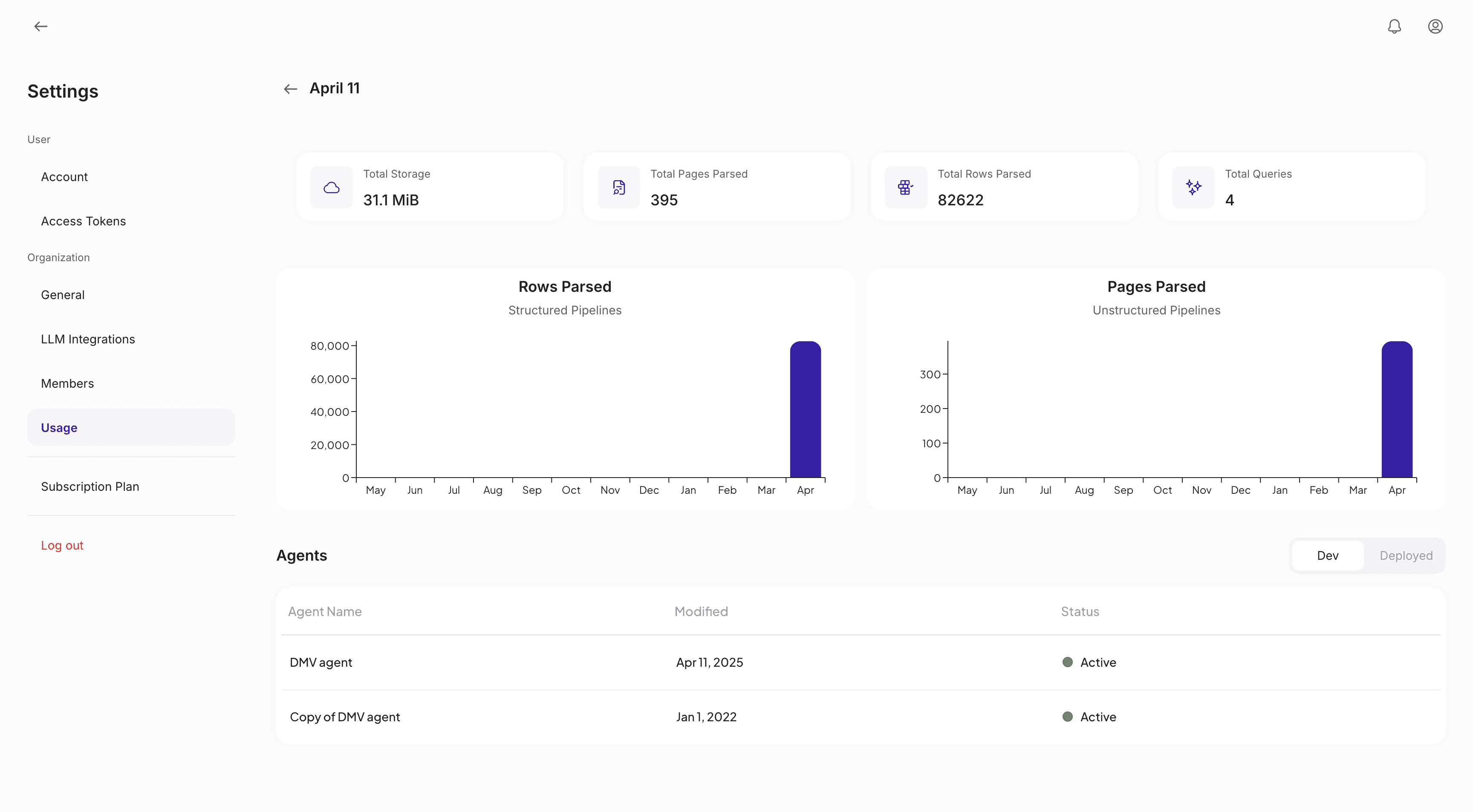
The Usage Dashboard helps users track and monitor detailed usage statistics across the organization. It provides insights into data storage, pages or rows parsed, and agent query activity over time.
Subscription Plans
There are two subscription plans available: Premium and Enterprise. Each plan offers a distinct set of features tailored to different need.
The Premium plan includes the following features and is priced at $1000 per month:
- Users: Up to 10
- Deployed Agents: 1
- Storage: Up to 10 GiB
- Pages Parsed: Up to 10K pages
- Rows Parsed: Up to 10M rows
- Query: Up to 10K queries
- Multi-modal parsing
- Intelligent image/table GenAI labeling
- Multi-space embeddings generation
- Multi-modal agents
- API access
The Enterprise plan includes the following features:
- Unlimited Users!
- Unlimited Deployed Agents!
- Unlimited Storage!
- Pages Parsed: Up to 1M pages
- Rows Parsed: Up to 1B rows
- Query: Up to 100K queries
- Multi-modal parsing
- Intelligent image/table GenAI labeling
- Multi-space embeddings generation
- Multi-modal agents
- API access
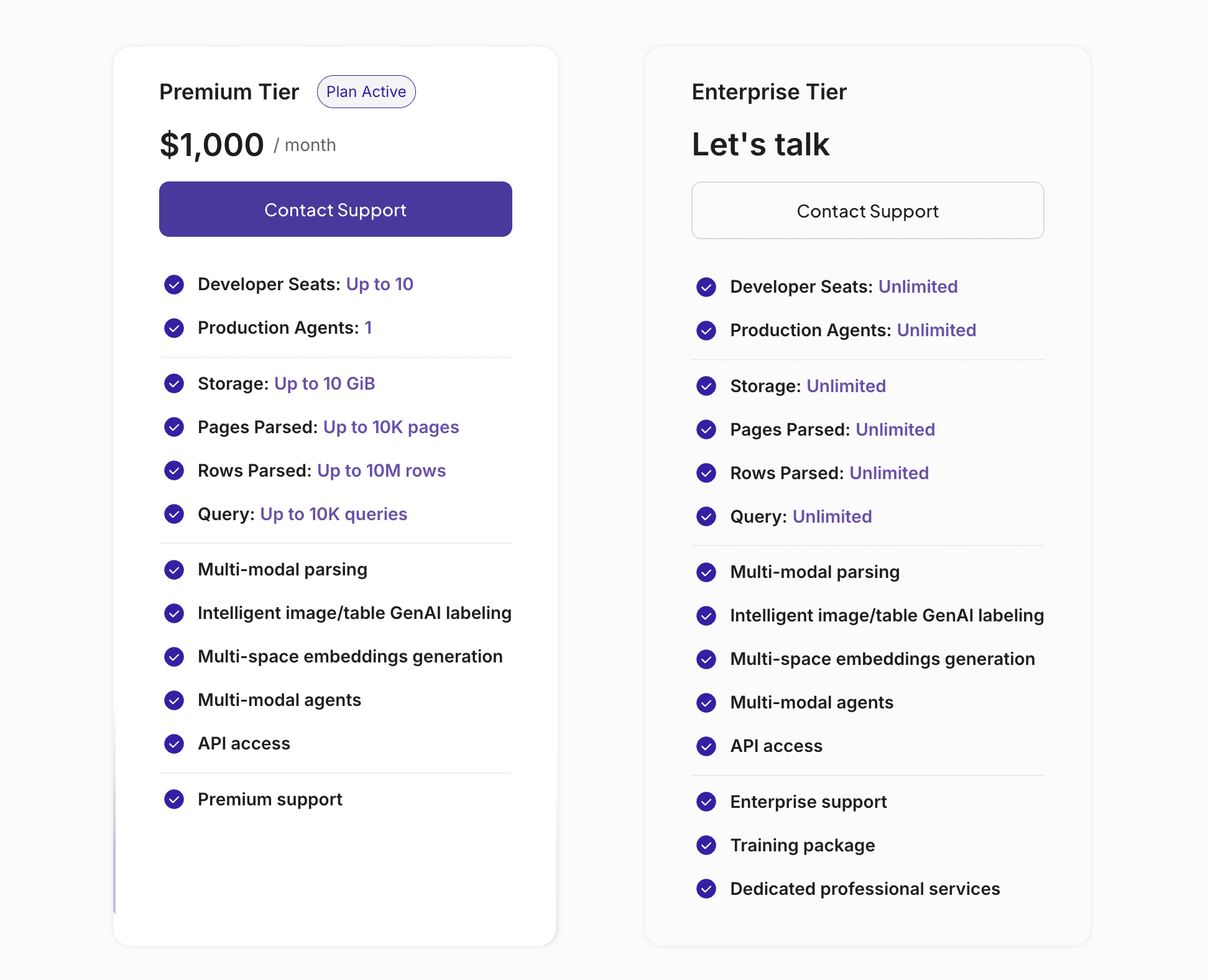
All users are initially onboarded with a 30-day free trial of the Premium plan. After the trial ends, access to certain features will be restricted until the user upgrades to a Premium or Enterprise plan.
Trial end limitations
After the trial period ends, users will retain access to all existing data within their rooms. You can continue to view feature views and explore space visualizations. However, actions that require computation—such as chatting with agents or adding new data—will be restricted. Users will still have the ability to delete their data at any time if needed.
Below is a list of features that become unavailable once the trial period expires.
- Creating new rooms
- Creating pipelines
- Adding additional data to pipelines
- Running Quick Mode
- Creating Feature Views
- Creating Spaces
- Creating Agents
- Chatting with agents
- Updating agent configuration
- Adding custom LLM Endpoints
- Inviting new members