Data Apps
Create Data Apps
Get started by clicking on "Create Data App" button. Give it a name and description that would best describe your workflow.

Drag and drop data sources of interest onto the data app canvas. If you do not have any data sources yet, learn how to add new data sources here.

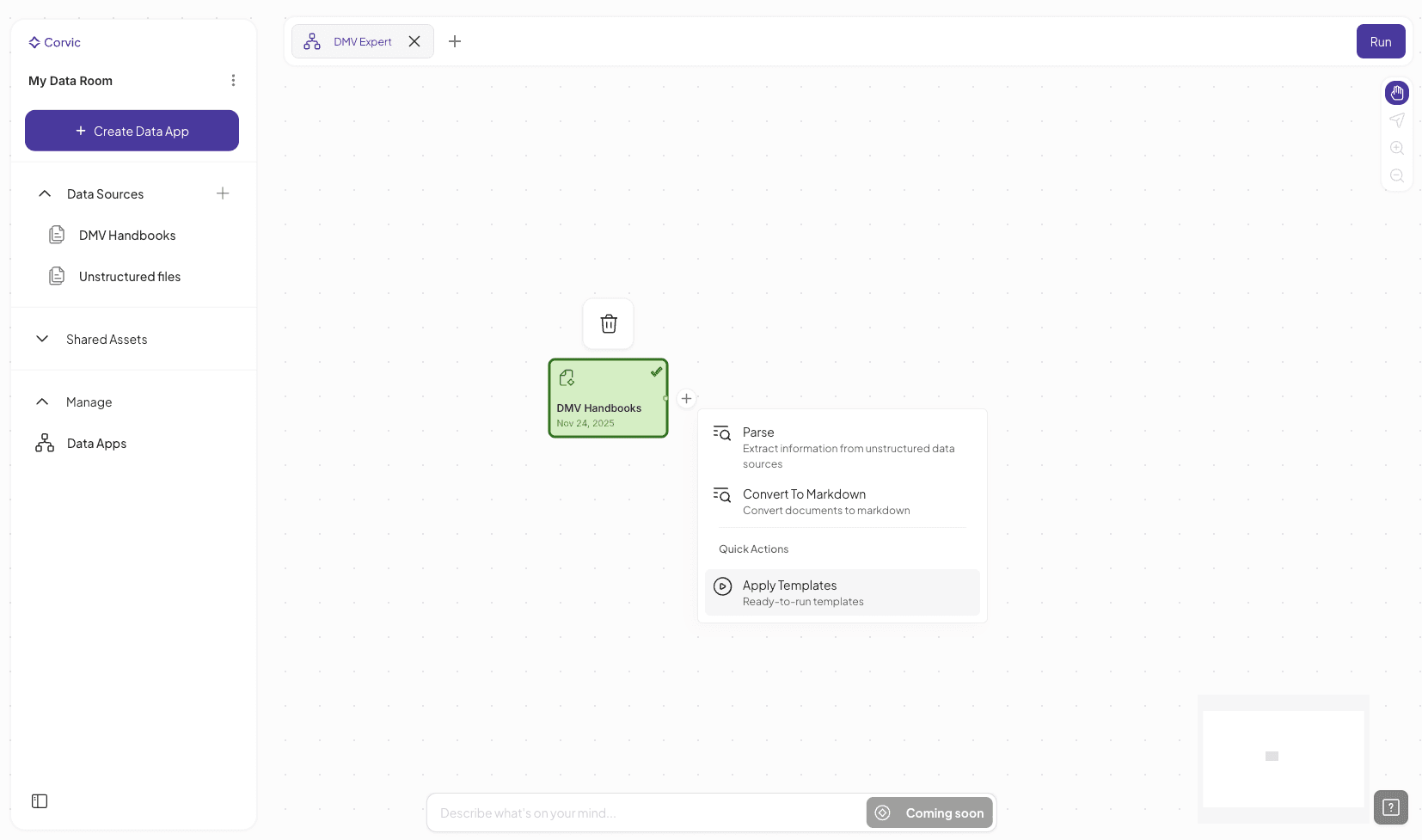
Click on the "+" button next to the data source node to view all available actions that can be taken on the data. Click on the "Apply Template" action to quickly setup your first workflow.
KnowledgeGraph RAG is a Corvic template that quickly sets up a pipeline to extract information from data using Knowledge Graphs and RAG. Click on Add to continue applying the template.

You should now see the workflow on the canvas - give it a moment to fully load. Once it’s ready, simply click Run. The pipeline will generate meaningful embeddings from your data within a few seconds, which can then be used by an agent to chat with your content.

Actions
Actions are user-defined operations that run on data sources to extract meaningful information into tables. They can also be used to generate embeddings. Most action outputs take the form of tables (tabular data), which can then be saved as assets—either Feature Views or Spaces.
Parse
Use this action to analyze unstructured data and automatically generate three tabular outputs containing textual, structural, and image-related information from data sources. This action can only applied to "Unstructured Type" data sources.

Sanitize Parquet
Use this action to analyze structured data and automatically generate tabular outputs for each distinct schema found in the source. This acton can only applied to "Structured Type" data sources. After applying the action, click Run in the Data App canvas to view the results. Below is an example of how a structured data source appears after this action is applied.

Graph Builder
The Graph Builder action allows users to construct relational graphs from multiple Feature View (FV) assets. It can only be applied to Feature Views and supports selecting two or more FV inputs at a time. Users can modify the schemas of the selected inputs and dynamically visualize how the graph forms based on the relationships between their tables. At least one input FV must contain a foreign key relationship to another selected FV in order to use this action. The Graph Builder is typically a prerequisite for the Relational Embedding in the Embed action. Below is an example of how to update schema in the action panel. Checkout how the "Graph View" panel changes every time a new connection is made.

Embed
The Embed action is used to generate embeddings from data and can only be applied to Feature View (FV) assets. It supports creating embeddings of various types, including Semantic, Relational, Image, and Tabular. The input for this action is a Feature View asset, and the output is a Space asset, which can then be used for downstream analysis or powering agent responses.

Create Agent
The Create Agent action is used to build an agent powered by space embeddings from your data sources. This action can only be applied to Space assets. Provide a descriptive name for your agent that reflects its functionality, and select a completion model to get started.
