Agents
Agent Configuration
You can configure the completion model to be used by the agent. By default, the completion model is set to GPT 5.1. The completion LLMs supported by Corvic are broadly classified into three categories:
- Fast Models:
- Google: Gemini 2.0 Flash
- Google: Gemini 2.5 Flash
- OpenAI: GPT 5 Mini
- OpenAI: GPT 5 Nano
- OpenAI: GPT 4.1 Mini
- OpenAI: GPT 4.1 Nano
- Reasoning Models:
- Google: Gemini 2.5 Pro
- OpenAI: GPT 5
- OpenAI: GPT 5.1
- Large Models:
- OpenAI: GPT 4.1
If you have custom LLM Endpoints configured in your organization, you should be able to access the custom models as well here.
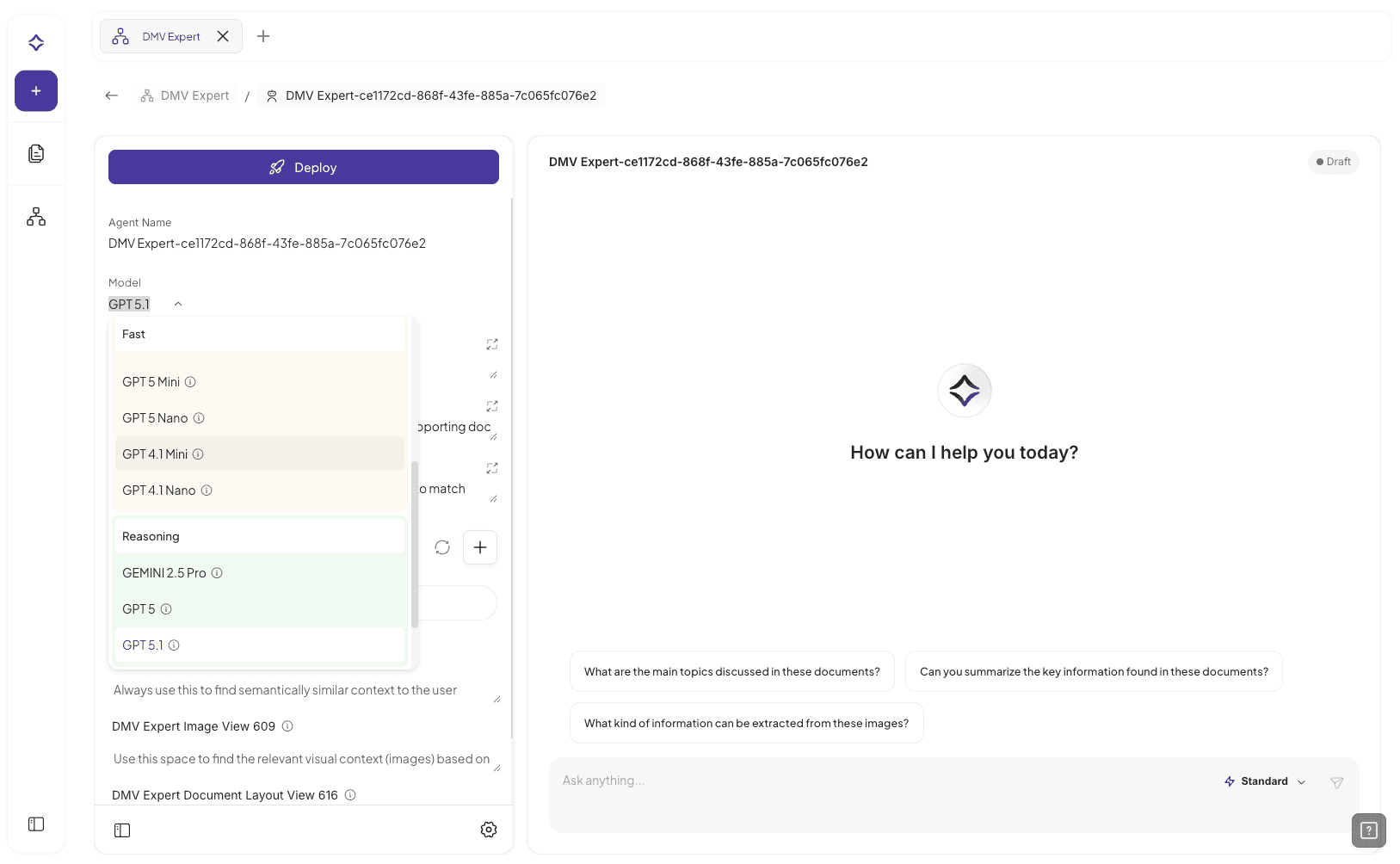
You can also customize your agent by updating its name, selecting the specific spaces it should use, and adding custom instructions for both the spaces and the completion model in the Configuration tab. Make sure to click on the Update button to save any changes made in the Configuration tab.

Providing clear instructions is essential, as it helps the agent understand the context and improves the quality of its responses. Feel free to experiment with different instruction configurations to see what yields the best results. Once you're satisfied with the setup, start asking your agent questions tailored to your data.
Chatting with Agent
Now, ask a question related to your data. The agent will orchestrate and execute a "policy" by identifying the most relevant spaces and generating a chain of actions to retrieve and synthesize information from your space embeddings, delivering a more accurate and context-aware response.
 Note: It may take a couple of minutes to generate response from the agent.
You can interact with an Agent Response by liking or disliking the response and copying the response provided.
Thought Process and Context
All agent responses include thought processes that display the adaptive Chain of Actions used to obtain the response. You can view this by clicking on the eye icon in the agent response. This opens the the policy in the Thought Process tab.
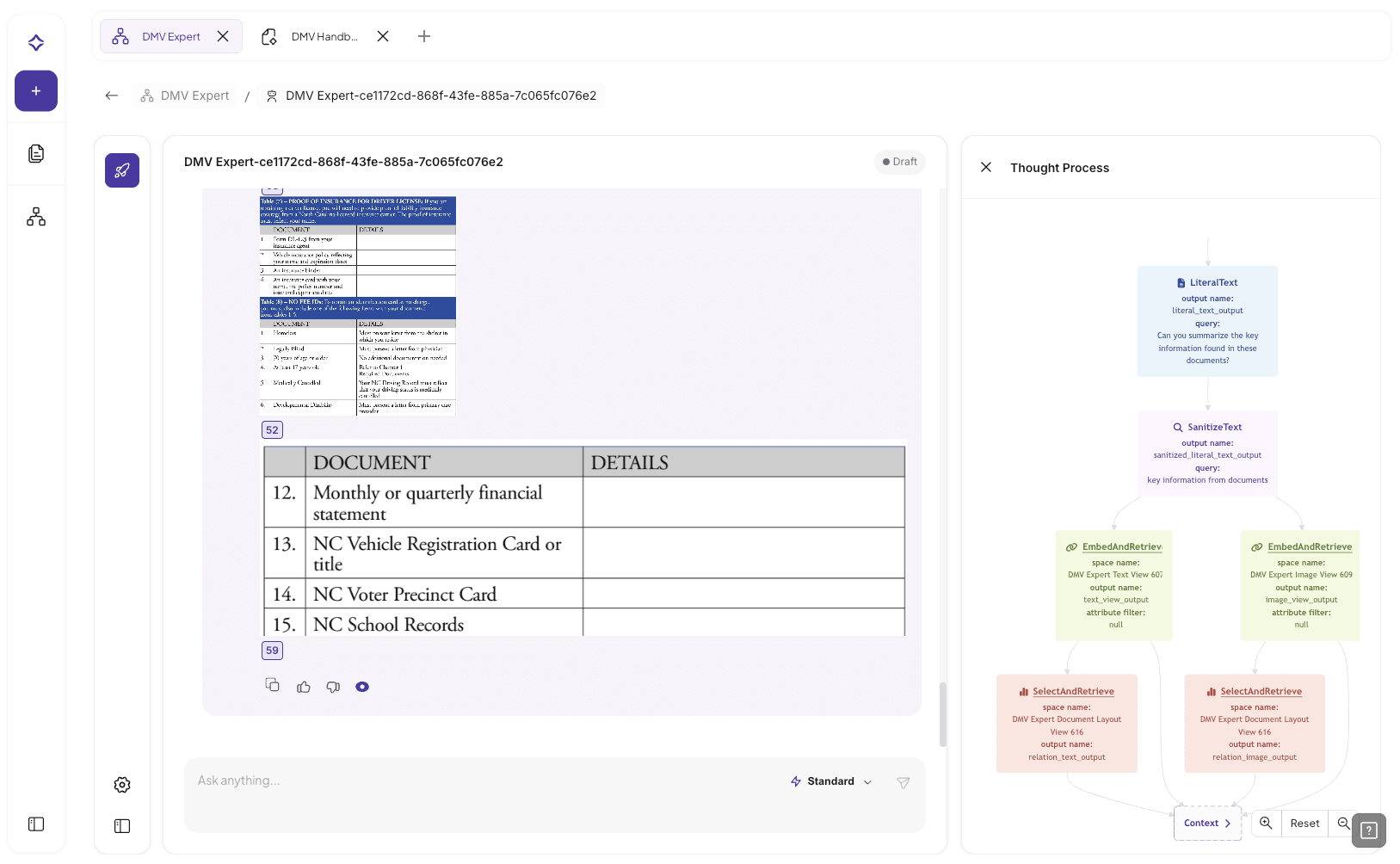
To view the data that was used to generate the response, click on Context in the Thought Process flowchart.
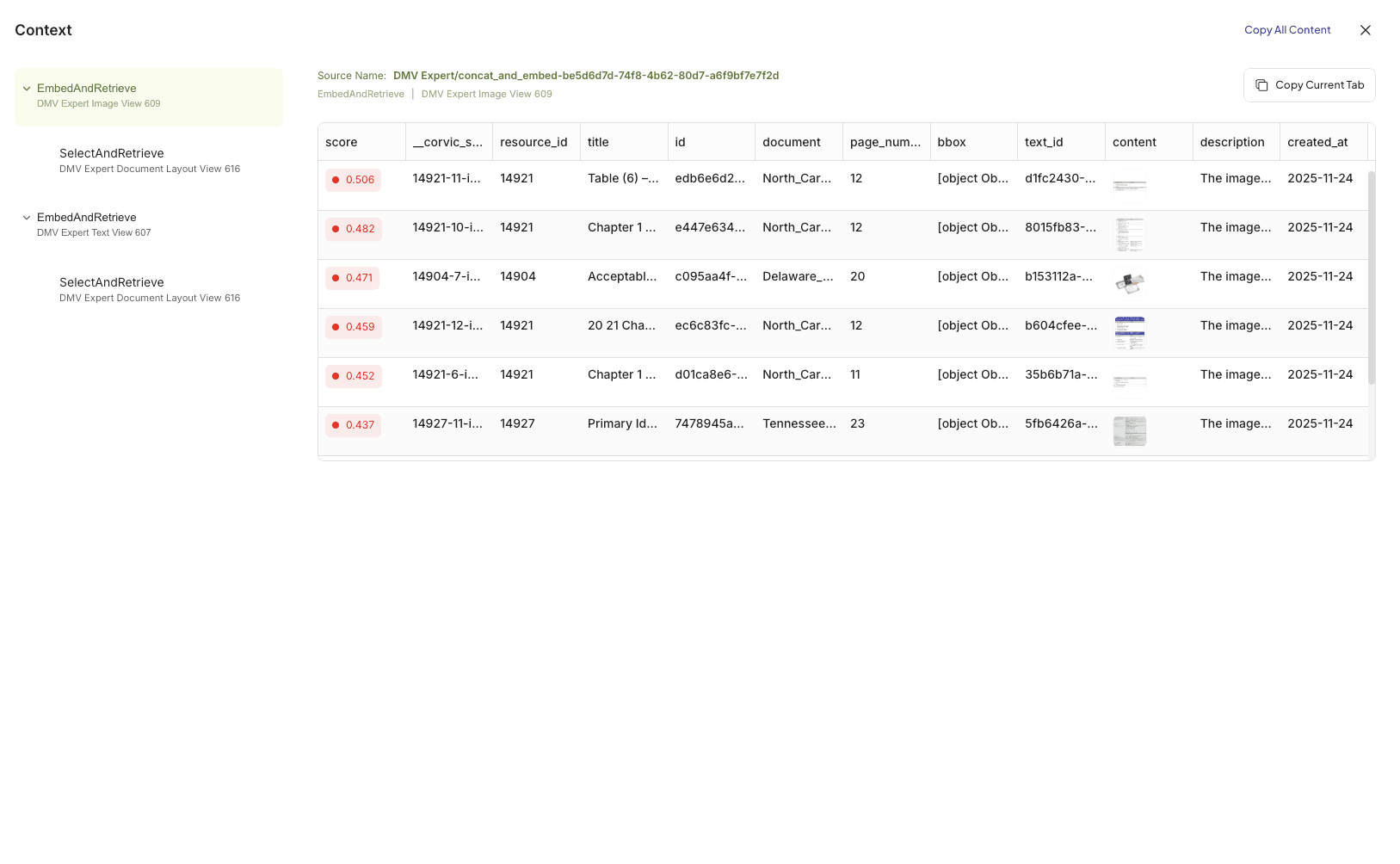
Citations (Beta Feature)
You can now view the references to source documents by clicking on the citations provided in the agent message.

Deploying Agents (Beta Feature)
Once you're happy with your agent configuration, you can make it available to end users by deploying the agent. To begin, click Deployment Preview. This opens a preview page where you can customize the agent’s appearance and onboarding experience. You can add starter questions, link helpful videos and documentation, upload your company logo and brand colors, and include additional context to help users get started.
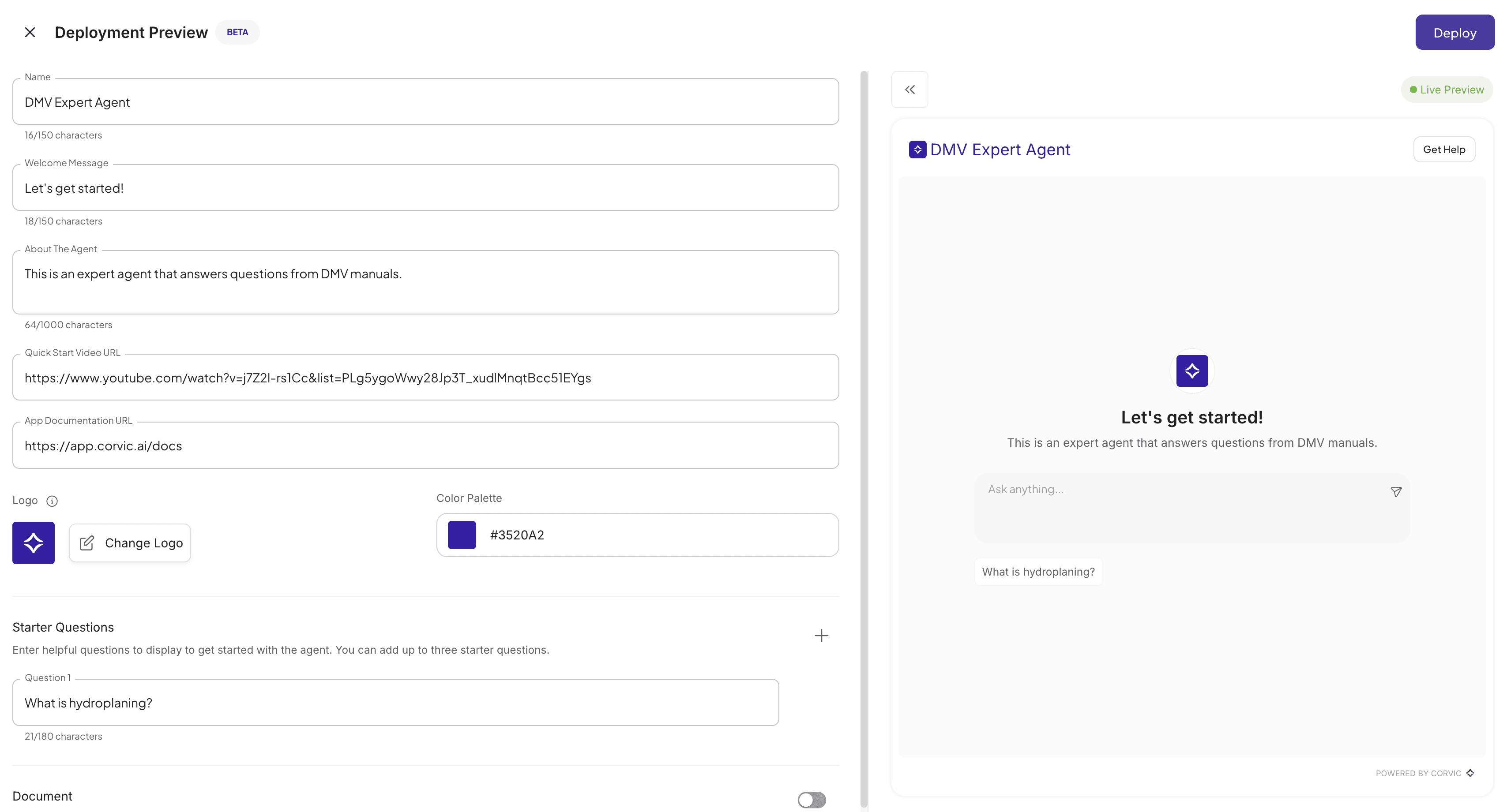
When you're satisfied with the preview, click "Deploy" to generate a link for accessing the live agent.
You can also integrate the agent directly into your system using the MCP endpoint for more advanced use cases. Here are some example integrations: